How to Connect Claude to Salesforce with Claudeforce: A Step-by-Step Setup Guide
Here's a step by step by guide to help you integrate Salesforce and Claude through its Hosted MCP Servers. The good news is that the setup is fairly straightforward. The less-good news is that it involves External Client Apps, OAuth scopes, callback URLs, and a few settings that are very easy to miss.
Matthew McConaughey never had to register an External Client App. But if he had tried setting up Claudeforce himself, this is probably where he would have gotten stuck.
Salesforce now lets Claude connect to your org through its Hosted MCP Servers. The good news is that the setup is fairly straightforward. The less-good news is that it involves External Client Apps, OAuth scopes, callback URLs, and a few settings that are very easy to miss.
Want to see what ClaudeForce can do for you? Watch the launch here.
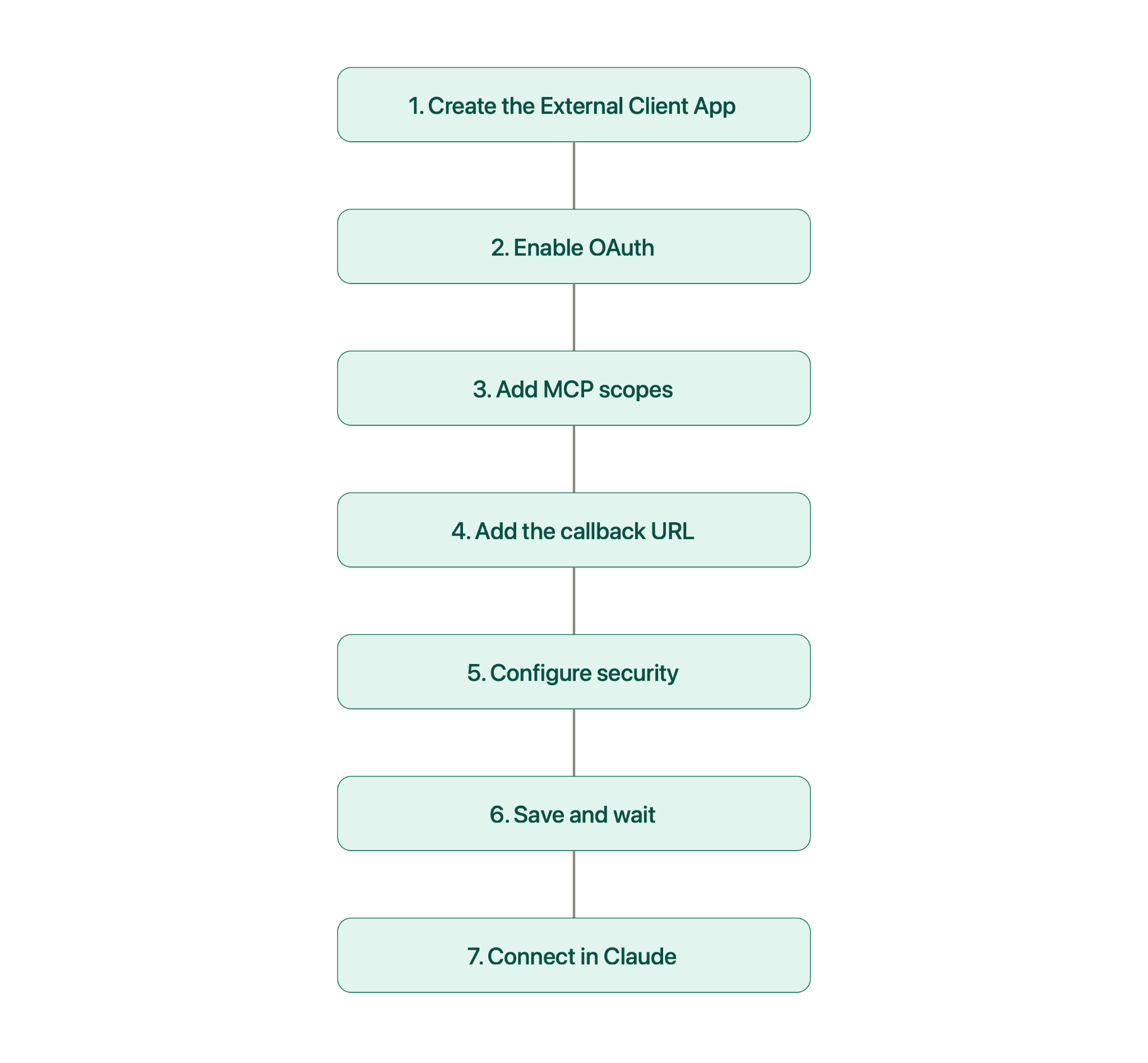
Here is how to get Claude talking to Salesforce, and seven things worth knowing along the way.

Before you start
You will need System Administrator or equivalent permissions in Salesforce to configure the connection. You will also need access to Claude and should allow some extra time after creating the External Client App, since Salesforce says a new app can take up to 30 minutes to become available.
You will also need to download and install Claude Desktop. Once installed, open Claude, go to the Plugins section, and search for the Salesforce (Beta) connector.
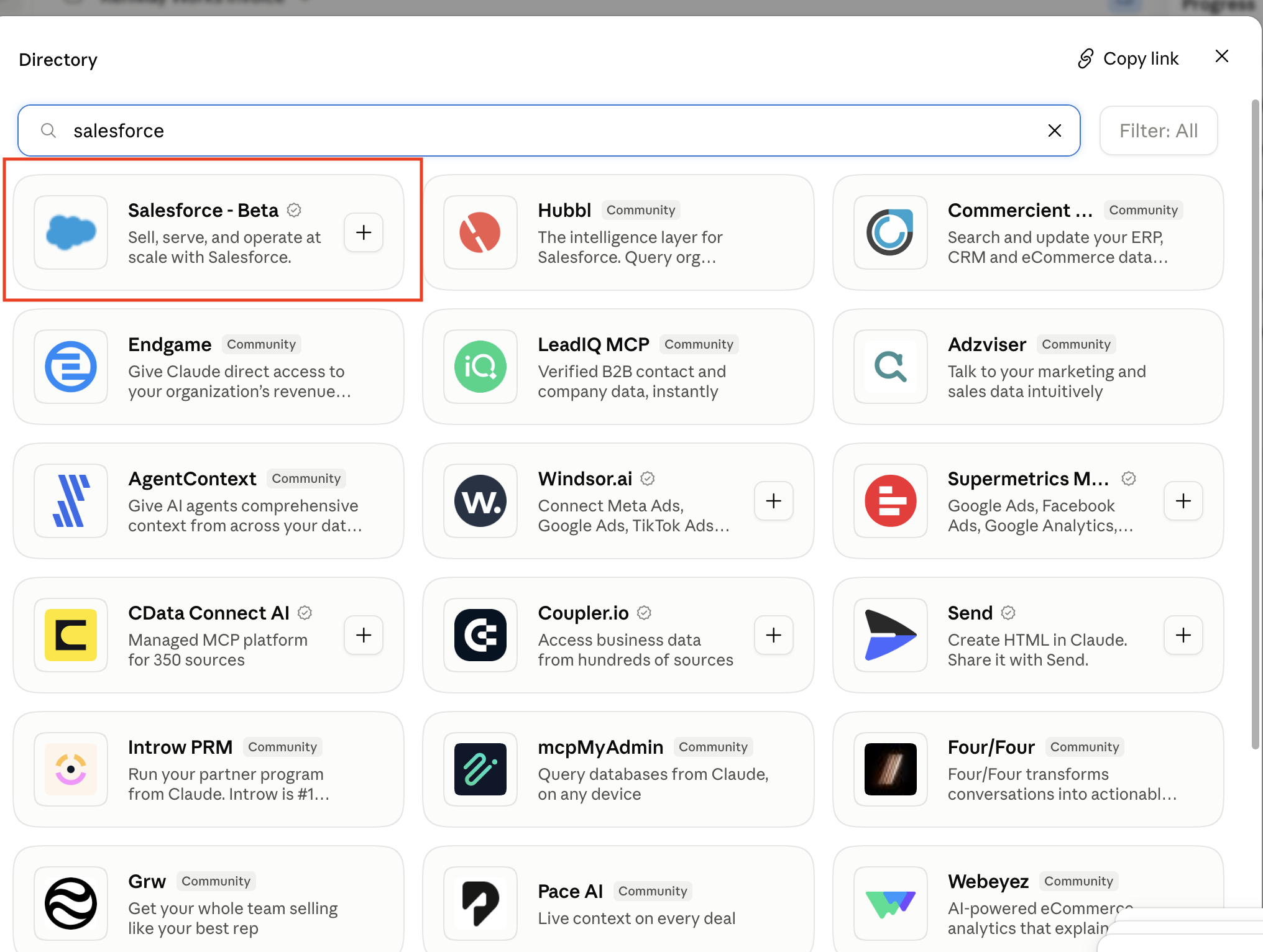
One other thing worth knowing before you build anything important around this: Salesforce Hosted MCP Servers are still in Beta. Expect the product, documentation, and setup process to continue changing as Salesforce develops the feature.
1. Start with an External Client App
The first step is registering Claude with Salesforce. Go to Salesforce Setup, search for External Client, open External Client App Manager, and click New External Client App. Fill out the basic information for your Claude integration.
If you have been working with Salesforce integrations for a while, your first instinct might be to create a Connected App. Don't. Salesforce specifically requires an External Client App (ECA) for Hosted MCP Servers. Connected Apps are not supported for this setup.
The ECA is essentially how Salesforce recognizes Claude as an approved external application and controls how it is allowed to authenticate with your org.
There is one caveat for scratch orgs. Salesforce does not let you create External Client Apps directly inside a scratch org through Setup. Instead, you need to create the ECA in a Dev Hub org, add it to a package, and install that package into your scratch org. For most normal orgs and sandboxes, though, you can create the ECA directly from Setup.
2. Enable OAuth
Once you have the basic External Client App information in place, expand API (Enable OAuth Settings) and select Enable OAuth. This is what allows Claude to authenticate with Salesforce.
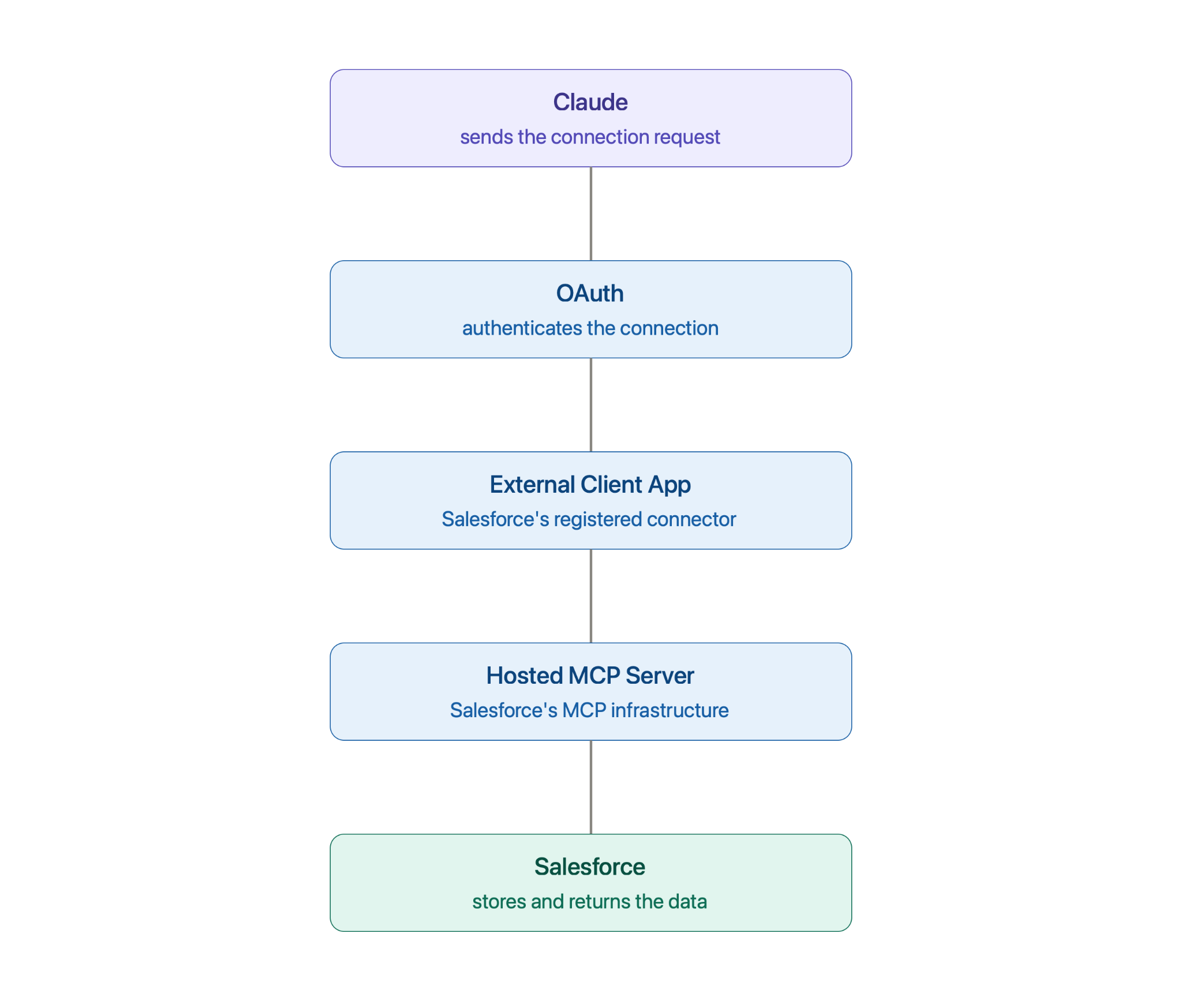
Claude is not getting some special unrestricted connection to your Salesforce org. The connection goes through Salesforce's Hosted MCP Server infrastructure, with OAuth controlling authentication and access.
Claude -> OAuth -> External Client App -> Hosted MCP Server -> Salesforce
Salesforce remains responsible for authenticating the user and determining what that connection is allowed to access.
3. Add the MCP OAuth scopes
This is probably the easiest part of the setup to get wrong. After enabling OAuth, add these two scopes: Access MCP servers (mcp_api) and Perform requests at any time (refresh_token).
The first one is particularly important. The mcp_api scope is what gives the authenticated client access to Salesforce's MCP servers. It is also easy to overlook because it is specific to this new MCP workflow and is not one of the traditional Salesforce API scopes you might select out of habit.
The refresh_token scope allows Claude to maintain the authorized connection without making the user authenticate again every time the access token expires. For production, Salesforce recommends considering shorter refresh-token validity periods and Refresh Token Rotation for stronger security.
4. Add Claude's callback URL
Next comes one tiny field that can cause a surprisingly large headache. For Claude, Salesforce currently documents the following callback URL:
https://claude.ai/api/mcp/auth_callback
Copy it exactly. The callback URL tells Salesforce where to send the user after the OAuth authorization process. It is specific to the MCP client you are connecting, so you cannot simply copy a callback URL from a Cursor, Postman, or another MCP tutorial.
If Claude sends one callback URL during authentication and your External Client App has another one registered, the OAuth handshake will fail. The frustrating part is that OAuth errors are not always particularly good at telling you that the callback URL is the problem. So, alright, alright, alright. Copy and paste this one.
5. Configure the security settings
Under Security, Salesforce instructs you to select Issue JSON Web Token (JWT)-based access tokens for named users. For the initial setup, it is better to stay close to Salesforce's documented configuration rather than turning on additional options simply because they sound useful.
Once you move beyond testing, however, there are several security controls worth considering. Salesforce allows you to restrict access to the External Client App using Permission Sets and pre-authorized-user policies. Salesforce also recommends considering shorter refresh-token validity periods and Refresh Token Rotation. Single Logout can also be useful because it allows the corresponding MCP client session to be terminated when Salesforce access is revoked.
IP restrictions are another option, but Salesforce warns that some MCP clients may operate across more IP addresses than a practical allowlist can accommodate. The main point is simple: getting Claudeforce working and deciding how Claudeforce should be secured in production are two separate steps.
6. Save the app and give Salesforce some time
Once the OAuth and security settings are configured, create the External Client App. Then wait. Salesforce says a newly created ECA can take up to 30 minutes to become available and operational. If you immediately try to connect Claude and authentication fails, that does not necessarily mean you configured something incorrectly
Once the ECA has propagated, open it and go to Settings -> Consumer Key and Secret under the OAuth settings. Retrieve the consumer key and store it securely. You will need that information when completing the connection from your MCP client.
7. Finish the connection in Claude
At this point, the Salesforce side of the connection is ready. You have registered Claude as an External Client App, enabled OAuth, granted MCP access, configured Claude's callback URL, and generated the credentials needed to authenticate.
The final step is to add the Salesforce MCP connection from Claude using the MCP server information and credentials from your Salesforce setup. Claude will send you through the Salesforce OAuth flow, where you authenticate with Salesforce and authorize the connection.
If the connection fails here, work backward through the configuration before changing everything at once. Check that the ECA has had enough time to propagate, confirm the callback URL, make sure mcp_api and refresh_token are present, and verify that the Salesforce user is actually allowed to use the External Client App.
Once authentication completes successfully, Claude can start interacting with Salesforce through the Hosted MCP Server. Alright, alright, alright. You have Claudeforce.
Getting Claude connected is only the beginning
Setting up Claudeforce is manageable once you know which Salesforce settings matter. But there is another problem that becomes more important as you start using this beyond a single test org: how do you keep all of this configuration consistent?
Your External Client App is now part of your Salesforce configuration. It has OAuth scopes, security policies, token settings, and potentially Permission Sets associated with it. Today, you know exactly why those settings exist. Six months from now, someone may have changed a scope, another admin may have updated the security policy, or your team may need the same configuration in another Salesforce org.
And that gets particularly interesting for organizations running multiple Salesforce orgs. If Claude is configured in development and you later need the same configuration in QA, staging, production, or another business unit's org, manually recreating everything introduces another opportunity for configuration drift.
Getting Claude connected to Salesforce is one problem. Making sure the Salesforce configuration behind that connection is consistent across your orgs and that changes can be deployed with confidence is another.
And that is exactly the kind of Salesforce configuration problem that becomes much easier when you treat configuration like code.