How to Use Salesforce Debug Logs to Debug Apex (2026 Guide)
 By Randalyn Hill-Coffer·Reviewed by the Blue Canvas team··Updated October 15, 2026·12 min read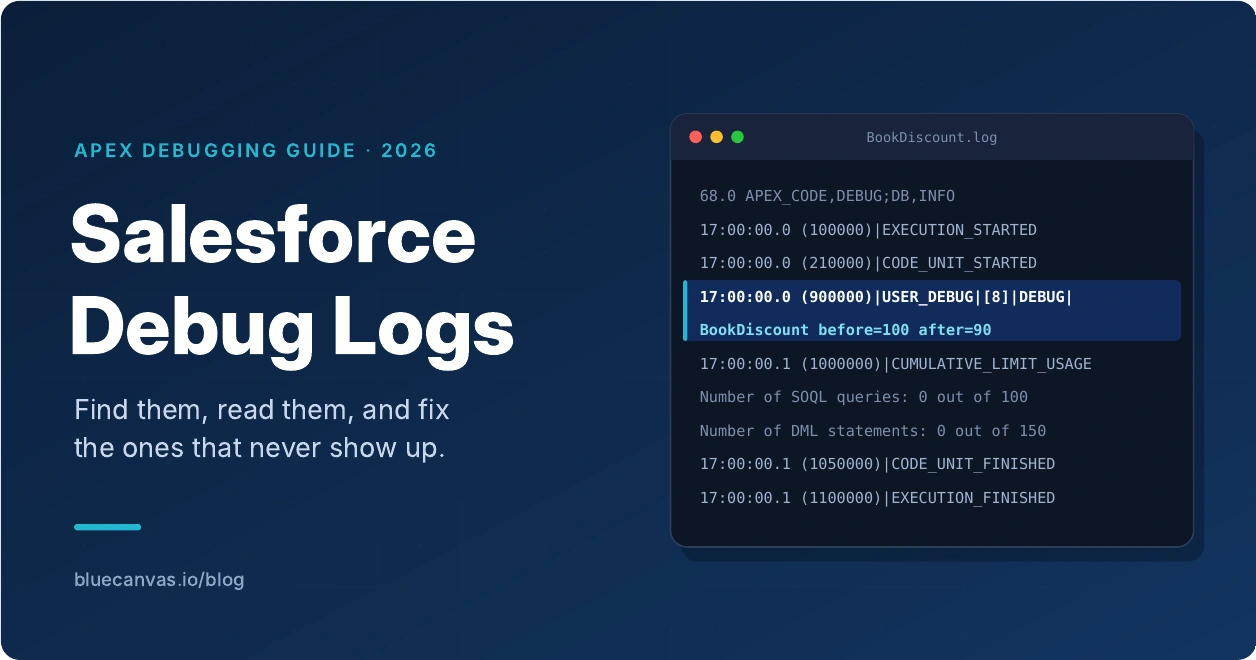
If your Salesforce debug logs aren't appearing, are hard to read, or don't include the output you need, start here. You'll set up a trace flag, read a focused log example, and use Apex Replay Debugger in VS Code to inspect what happened during execution.
The goal is to answer a specific question: what did the code do, and where did that differ from what you expected?
Where to find Salesforce debug logs
In Salesforce, open Setup, enter Debug Logs in Quick Find, and select Debug Logs. To capture a new transaction, create a trace flag for the user running it, reproduce the issue, refresh the page, and open the resulting log.
If the list is empty, follow the missing logs checks. If you need to configure logging first, jump to trace flag setup.
Why your Salesforce debug logs are not showing up
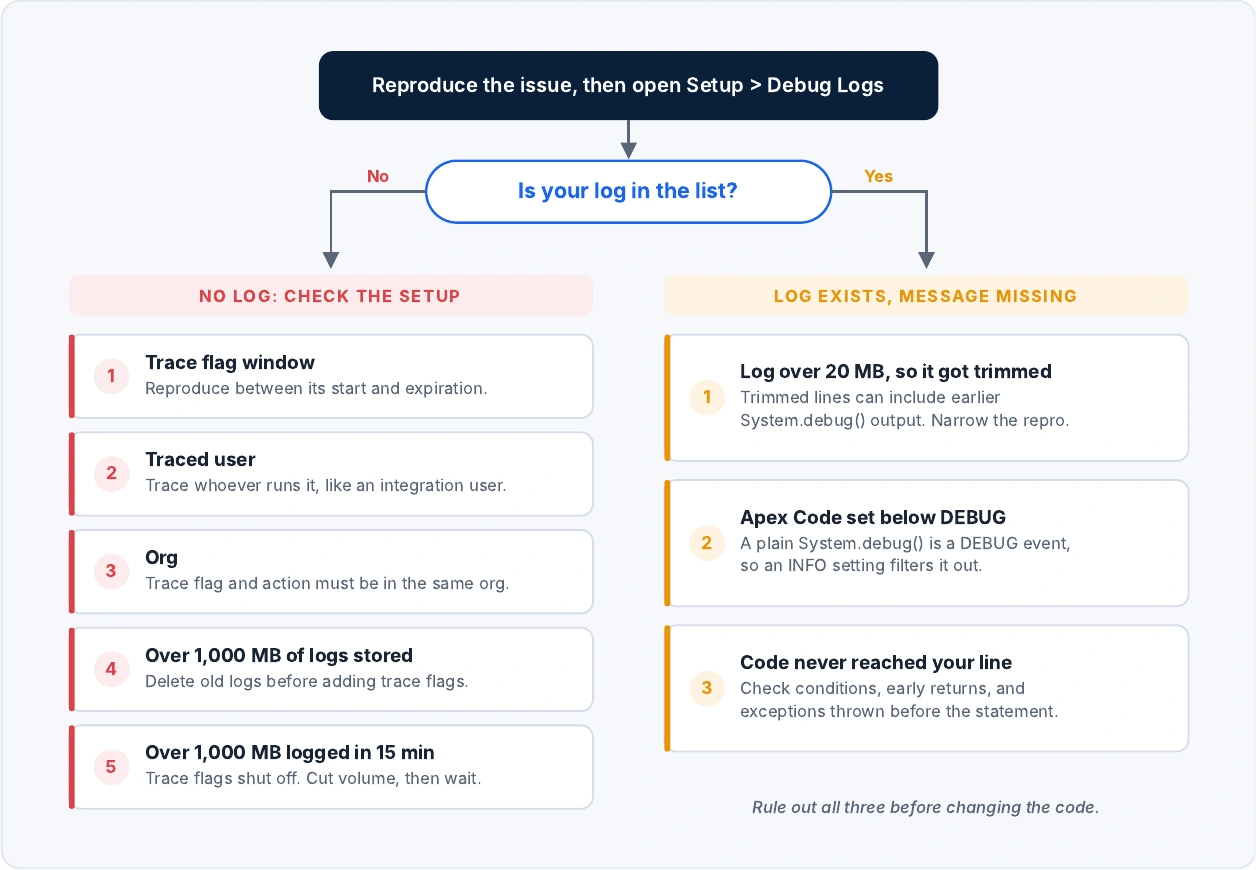
Check these before adding more debug statements:
| Check | What to do |
|---|---|
| The trace flag expired or has not started | Verify its start and expiration times, then reproduce the issue inside that window. Logging does not reconstruct earlier activity. |
| You are tracing the wrong user | Trace the user who actually runs the transaction. That may be an integration user or an automation user rather than your own login. |
| You are checking the wrong org | Confirm that the action and trace flag belong to the same sandbox or production org. |
| The org holds more than 1,000 MB of debug logs | Delete logs you no longer need. Salesforce blocks adding or editing trace flags above this storage threshold. |
| The org generated more than 1,000 MB in 15 minutes | Salesforce disables trace flags. Reduce logging volume; Salesforce allows re-enabling tracing after 15 minutes. |
Salesforce documents the two storage and volume thresholds in its debug log limits. For platform event subscribers using the default Automated Process user, see Salesforce's Automated Process trace flag instructions.
When the log exists but your message is missing
Each debug log is limited to 20 MB. Salesforce trims oversized logs, and removed lines can come from different parts of the log, including earlier System.debug() output. Reduce verbosity and capture a narrower reproduction before assuming the statement never ran.
Also check the Apex Code logging level. A plain System.debug(message) produces a DEBUG-level event, so an INFO setting will exclude it. Finally, confirm the code path reached your statement. A condition, return, or earlier exception may explain the missing message. See Salesforce's logging level reference.
Set up a trace flag and debug level
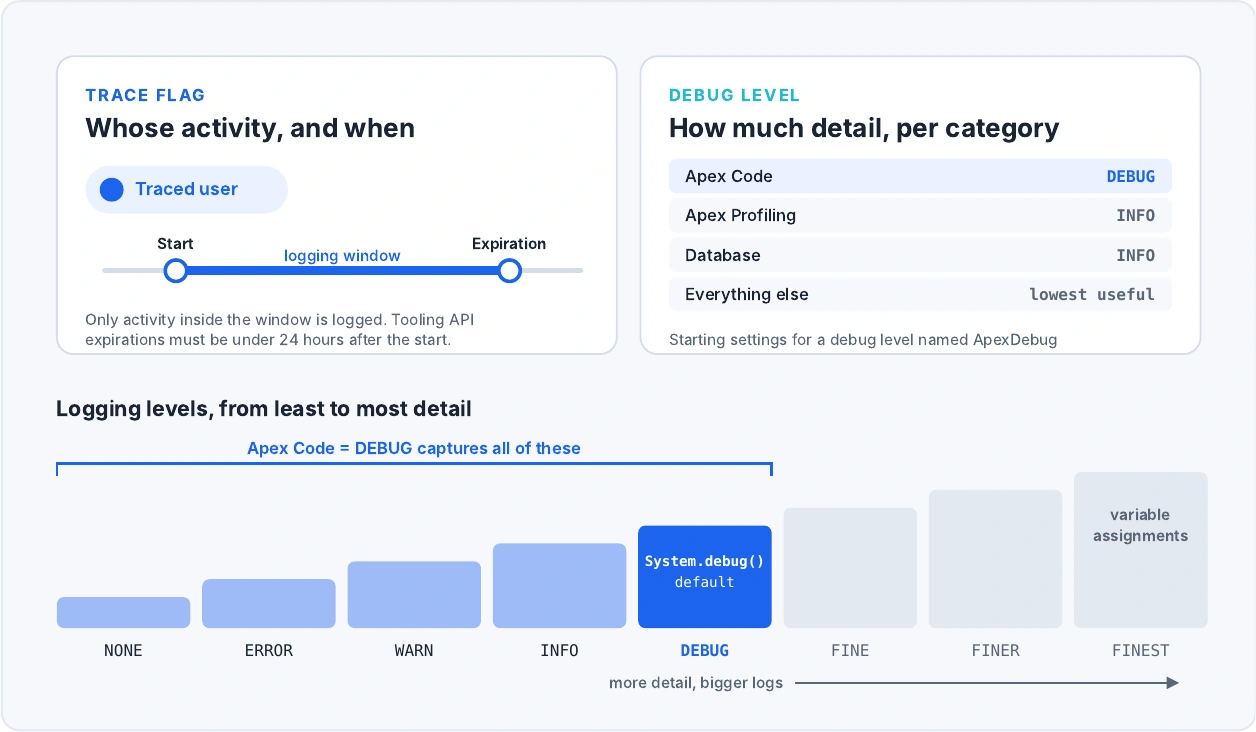
A trace flag tells Salesforce whose activity to capture and when. A debug level controls the amount of detail recorded for each category, such as Apex Code, Database, or Workflow.
- Go to Setup > Debug Logs and click New to create a trace flag.
- Choose User as the traced entity type and select the user who will reproduce the issue.
- Set a short start and expiration window that covers your investigation.
- Select or create a debug level named ApexDebug. Start with Apex Code = DEBUG, Apex Profiling = INFO, and Database = INFO. Keep other categories at the lowest level useful for the issue.
- Save, reproduce the problem once, and refresh the Debug Logs page.
- Open the log that matches the user, time, and operation you just tested.
These are starting settings for the example below. Increase Workflow detail when investigating Flow, or Callout detail when investigating an external request. Use Salesforce's debug logging setup instructions for the configuration fields and required permissions.
The logging levels, from least to most detail, are NONE, ERROR, WARN, INFO, DEBUG, FINE, FINER, and FINEST. A category includes events at its selected level and lower levels. Use FINEST when you need variable assignments; it generates much more output than this basic example needs.
How to read a Salesforce debug log
Start with the behavior you expected. In this example, inserting a Book priced at 100 should apply a 10% discount and save a price of 90.
Add a diagnostic statement that answers a question
In a sandbox, use a custom object named Book__c with a currency field named Price__c. This example trigger logs the price before and after the calculation and skips records with no price:
trigger BookDiscount on Book__c (before insert) {
    for (Book__c book : Trigger.new) {
        if (book.Price__c == null) {
            continue;
        }
        Decimal beforePrice = book.Price__c;
        book.Price__c = beforePrice * 0.90;
        System.debug(LoggingLevel.DEBUG,
            'BookDiscount before=' + beforePrice +
            ' after=' + book.Price__c);
    }
}
The field assignment happens in a before-insert trigger, so it does not need a separate update statement. For an existing application, put diagnostics in the relevant trigger handler rather than adding a second trigger just for logging. Log the values needed to test your hypothesis; avoid dumping entire records or sensitive fields.
Read a focused log excerpt
With the trace flag active, insert a Book with a price of 100. This shortened, illustrative excerpt shows the events to inspect. Its header uses API version 68.0 from Winter '27; the version in your org can differ.
68.0 APEX_CODE,DEBUG;APEX_PROFILING,INFO;DB,INFO
17:00:00.0 (100000) |EXECUTION_STARTED
17:00:00.0 (900000) |USER_DEBUG|[8]|DEBUG|BookDiscount before=100 after=90
17:00:00.1 (1000000) |CUMULATIVE_LIMIT_USAGE
17:00:00.1 (1000000) |LIMIT_USAGE_FOR_NS|(default)|
  Number of SOQL queries: 0 out of 100
  Number of DML statements: 0 out of 150
17:00:00.1 (1000000) |CUMULATIVE_LIMIT_USAGE_END
17:00:00.1 (1100000) |EXECUTION_FINISHED
The header identifies the API version and category settings. It helps you check whether the log captured enough detail for the question you are investigating.
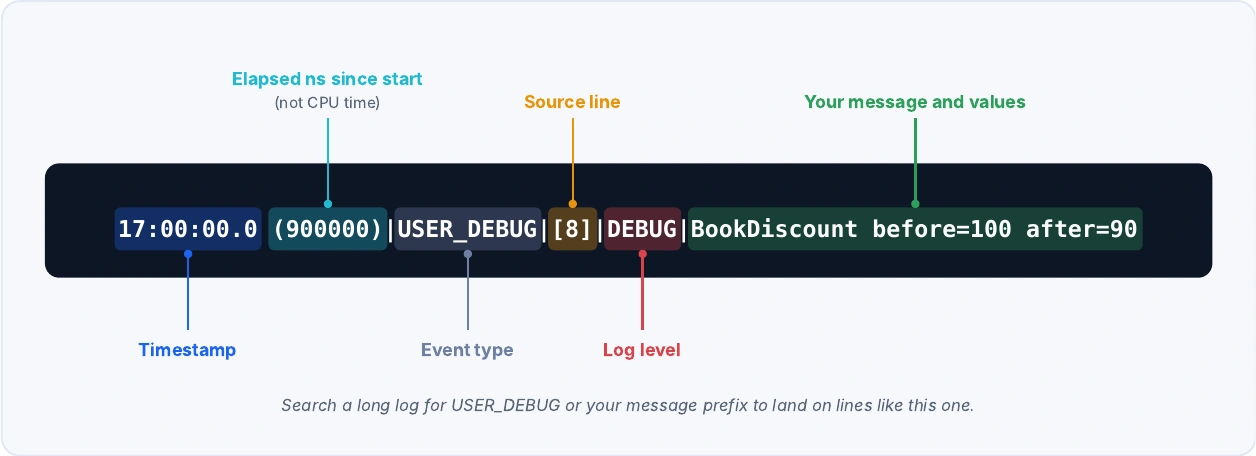
The USER_DEBUG line breaks down like this:
| Part | Meaning |
|---|---|
17:00:00.0 | Timestamp for the event. |
(900000) | Elapsed time in nanoseconds since execution began. This is not the transaction's CPU consumption. |
USER_DEBUG | A diagnostic event produced by System.debug(). |
[8] | The source line that produced the event. |
DEBUG | The message's logging level. |
| BookDiscount before=100 after=90 | The diagnostic message and values you chose to record. |
The execution markers bound the execution represented by the log. In a fuller log, CODE_UNIT_STARTED and CODE_UNIT_FINISHED help you locate triggers and other units of work. Salesforce explains the format in Debug Log Details.
The limit summary reports resource usage against the applicable limits. Here, the trigger itself performs no SOQL queries or DML statements. The two example limits are not a complete list, and limits differ by execution context; inspect the values reported for your transaction.
Find the relevant event before reading the surrounding lines
| What you are investigating | Search for |
|---|---|
| Your diagnostic output | USER_DEBUG or your message prefix |
| A thrown exception | EXCEPTION_THROWN |
| An error that ended execution | FATAL_ERROR |
| Repeated database queries | SOQL_EXECUTE_BEGIN and SOQL_EXECUTE_END |
| Governor limit consumption | LIMIT_USAGE_FOR_NS |
An EXCEPTION_THROWN entry can describe an exception that was caught later. Read the surrounding events and outcome before treating it as the cause of the failure. Salesforce's event reference lists the category and minimum level for each event.
Use the evidence to narrow the cause
If the message shows 100 becoming 90, that calculation behaved as expected. If the saved record contains a different value, inspect subsequent automation and any separate transactions that may update it. If the message never appears, return to the logging checks before changing the discount logic.
Once you find the cause, add a regression test that asserts the expected saved value. Test a missing price and multiple records too, then remove temporary diagnostics or reduce them to the detail your team needs.
Debug Apex in VS Code
Use Apex Replay Debugger when a text log makes the execution path difficult to follow. It replays recorded events with source code and variable inspection. It does not pause a live Salesforce transaction, and it requires no additional debugger license.
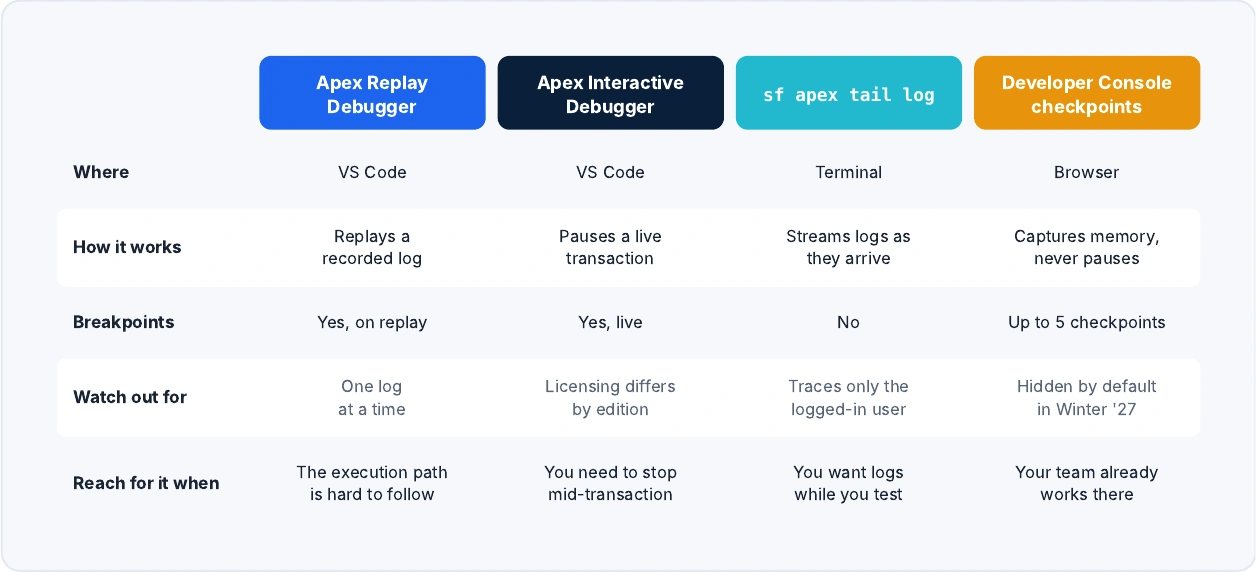
| Tool | Where | How it works | Breakpoints | Watch out for | Reach for it when |
|---|---|---|---|---|---|
| Apex Replay Debugger | VS Code | Replays a recorded log | Yes, on replay | One log at a time | The execution path is hard to follow |
| Apex Interactive Debugger | VS Code | Pauses a live transaction | Yes, live | Licensing differs by edition | You need to stop mid-transaction |
sf apex tail log | Terminal | Streams logs as they arrive | No | Traces only the logged-in user | You want logs while you test |
| Developer Console checkpoints | Browser | Captures memory, never pauses | Up to 5 checkpoints | Hidden by default in Winter '27 | Your team already works there |
Replay the transaction
Install Salesforce CLI and the Salesforce Extension Pack for VS Code. Open a Salesforce DX project, authorize the target org, and make sure your local Apex source matches the code that generated the log.
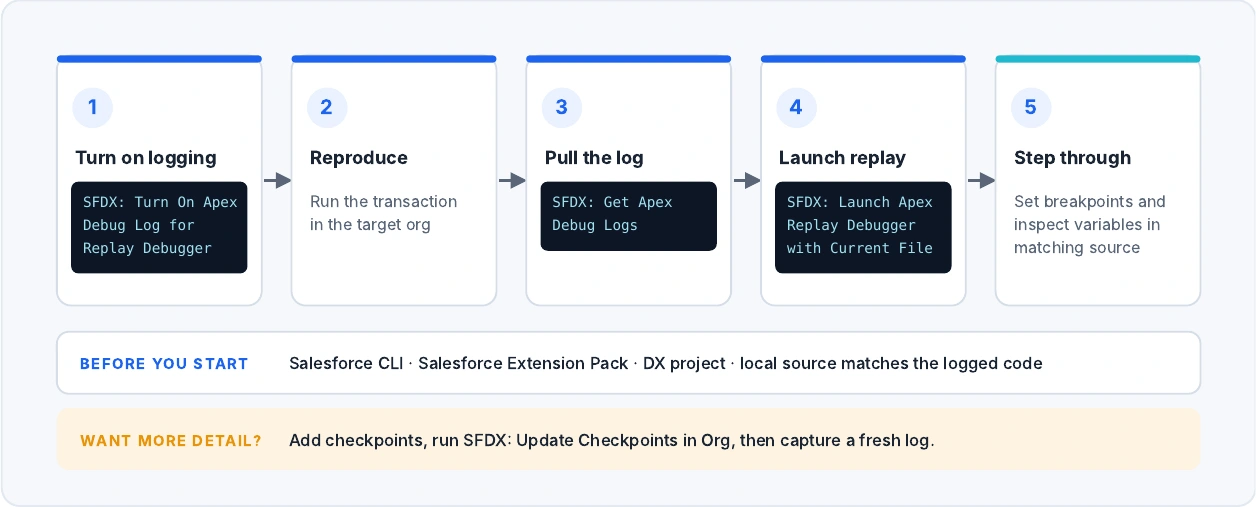
- In VS Code's Command Palette, run SFDX: Turn On Apex Debug Log for Replay Debugger.
- Reproduce the issue in the target org.
- Run SFDX: Get Apex Debug Logs, then select the relevant log.
- With that log open, run SFDX: Launch Apex Replay Debugger with Current File.
- Set breakpoints in the matching source and use the debug controls to step through recorded execution and inspect variables.
For fuller variable details, add checkpoints to the Apex source and run SFDX: Update Checkpoints in Org before generating a fresh log. Upload them again after changing the code or checkpoint locations.
Replay handles one log at a time, so asynchronous work that produces multiple logs needs separate inspection. Salesforce also documents limits on collections, expressions, and supported logs in the Replay Debugger guide.
Stream logs from Salesforce CLI
If you want logs in your terminal, use:
sf apex tail log --target-org my-sandbox --debug-level ApexDebug --colorReplace my-sandbox with your authorized org alias. ApexDebug must be the developer name of an existing debug level, such as the one created earlier. This command sets up developer logging for the authenticated user and displays logs as they become available; tracing another user still requires that user's trace flag.
Stop streaming with Ctrl+C, and end tracing when the investigation is finished. See the CLI log streaming reference.
For live breakpoints, Salesforce also offers Apex Interactive Debugger in supported sandboxes and scratch orgs. Its licensing differs by edition; compare the options in Salesforce's Apex debugger overview. JetBrains users can also use Illuminated Cloud, which offers Apex debugging tools.
Use checkpoints in Developer Console
Developer Console remains useful if your team already uses its browser workflow. A checkpoint captures objects in memory at a chosen point, which can help you inspect a value without adding another debug statement.
In Winter '27, Developer Console is hidden from the Setup menu by default. To restore it, enter Development in Setup's Quick Find, select Web Console, and set Enable Developer Console to Active. Salesforce's newer Web Console also supports trace flags and debug logs; see the Winter '27 developer guide.
To capture a Developer Console checkpoint:
- Open the class or trigger in Developer Console. Setting checkpoints requires View All Data.
- Use Debug > Change Log Levels to verify a DEVELOPER_LOG trace flag for your user. Set Apex Code to FINER or FINEST for checkpoint debugging.
- Click the margin beside the executable line you want to inspect.
- Keep Developer Console open and reproduce the transaction.
- Open the Checkpoints tab and double-click the result to inspect it.
You can enable up to five checkpoints. By default, each captures immediately before the first execution of its line, once rather than on every loop iteration. Adjust the capture iteration in Checkpoint Locations if needed. Checkpoints capture state without stopping execution.
Salesforce covers capture behavior in Set Checkpoints in Apex Code and logging settings in Logs Tab.
Download and delete debug logs in bulk
To download the ten most recent logs to a local folder, run:
sf apex get log --target-org my-sandbox --number 10 --output-dir ./debug-logsUse --log-id instead of --number when you need a particular log. Salesforce's download reference describes both options.
To delete selected logs in bulk, open Developer Console's Query Editor, select Use Tooling API, and run:
SELECT Id, StartTime, LogUserId, LogLength, Location
FROM ApexLog
ORDER BY StartTime DESC
Review the results, select the logs you no longer need, and click Delete Row. Save any logs needed for an active investigation first. This deletes log records, not business records; Salesforce documents the process in Delete Debug Logs.
Salesforce debug log FAQ
Why are my Salesforce debug logs not showing up?
Start with the trace flag's timing, the user executing the action, and the org you are viewing. Then check the storage and logging-volume thresholds in missing logs troubleshooting.
What is the maximum size of a Salesforce debug log?
A single debug log is limited to 20 MB; Salesforce trims oversized logs. See missing debug messages for why output can disappear.
How long does a trace flag last?
A trace flag lasts until its configured expiration time; the Tooling API requires expiration less than 24 hours after its start. This is separate from log retention: system logs last 24 hours and monitoring logs seven days, so check the trace flag setup and Salesforce's TraceFlag reference.
How do I download or delete debug logs in bulk?
Use sf apex get log with --number and --output-dir to download several recent logs. For deletion, select the intended ApexLog records through Developer Console's Tooling API query results, as shown in bulk log management.
Can I debug Apex with breakpoints in Salesforce?
Yes: Replay Debugger uses breakpoints while replaying a captured log, and Interactive Debugger supports live debugging in eligible environments with the appropriate license. See debugging in VS Code to choose the right workflow.
Found the bug?
Blue Canvas keeps a Git history of Apex changes in your connected orgs, so you can review what changed before it broke.